Docker for Beginners: A Complete Guide to Docker, Docker Hub & Containers
You have probably heard a developer say this at least once: "It works on my machine."
And then you push the same code to a server or hand it to a teammate and it breaks. A missing library. A different OS version. A dependency that is installed in one place but not another. The code is fine. The environment is not.
That is the exact problem Docker was built to solve.
Docker packages your application and everything it needs to run; libraries, dependencies, config files into one portable unit called a container. That container runs the same way on your laptop, your colleague's machine, and a cloud server in Singapore. No surprises.
In this guide, you will learn what Docker is, how it works, the key concepts you need to know, how to run your first container, and how Docker fits into a real DevOps career path.
Still figuring out where Docker fits in your learning journey? Our hands-on DevOps and Cloud diploma program covers Docker, Kubernetes, CI/CD, and cloud from scratch, built around what Nepal's IT industry is actually hiring for.
What is Docker?
Docker is an open-source platform that lets developers build, ship, and run applications inside containers. A container is a lightweight, isolated environment that holds your application and all its dependencies together in one package.
Think of it like a lunchbox. You pack everything your app needs; the food, the utensils, the napkin into one box. Wherever that box goes, the meal is ready to eat. No one needs to go hunt for cutlery separately.
Before Docker, deploying an application meant making sure the target server had the right version of Python, Node, Java, or whatever runtime your app needed. If something was missing or mismatched, the deployment failed. Docker eliminates that entirely.
According to Docker's own usage data, Docker Hub sees over 13 billion container image pulls per month which tells you exactly how widely it is used across the industry today.
Docker is used by:
- Developers: to run apps locally without installing every dependency on their machine
- DevOps engineers: to build CI/CD pipelines and automate deployments
- Cloud teams: to package and ship applications to AWS, Azure, and Google Cloud
- QA engineers: to test applications in clean, consistent environments every time
Why Use Docker? The Real Benefits
You could argue that you can install dependencies manually and it would work fine. And sometimes it does. But here is why teams switch to Docker and never go back:
- Consistency: the container carries everything your app needs. It runs the same way on every machine, every time. No more "works on my machine" debates.
- Portability: build once, run anywhere. A Docker container that runs on your laptop runs identically on a Linux server, a Windows machine, or a cloud platform like AWS.
- Speed: Docker containers start in seconds. Virtual machines take minutes because they boot an entire operating system. Containers skip that, they share the host OS kernel and just start the application.
- Efficiency: containers are lightweight. They use less CPU, less RAM, and less disk space than VMs because they do not carry a full OS inside them.
- Scalability: when you build applications as microservices, Docker makes it easy to scale individual pieces independently. Need more capacity for your payment service but not your homepage? Scale just that container.
Docker vs Virtual Machines: What is the Difference?
This is one of the most common questions beginners ask, and it is worth getting clear on early.
A Virtual Machine (VM) emulates an entire computer. It runs a full guest operating system on top of your host OS, using a hypervisor to manage the hardware resources. That full OS takes time to boot, uses a lot of memory, and takes significant disk space, sometimes gigabytes per VM.
A Docker container does not emulate hardware or run a separate OS. It shares the host OS kernel and only isolates the application layer. That makes it far lighter, faster to start and cheaper to run.
| What We Are Comparing | Docker Container | Virtual Machine |
|---|---|---|
| Boot Time | Seconds | Minutes |
| Resource Usage | Low, shares host OS kernel | High, runs full guest OS |
| Image Size | Megabytes | Gigabytes |
| Isolation Level | Process-level isolation | Full hardware virtualization |
| Portability | Runs anywhere Docker is installed | Depends on hypervisor compatibility |
| Best For | App deployment, microservices, DevOps | Full OS testing, legacy apps, full isolation |
To be clear, VMs are not dead. If you need to run a completely different operating system or test at the hardware level, VMs still make sense. But for the vast majority of modern application deployment work, containers are faster, lighter, and more practical.
Key Docker Concepts You Must Know
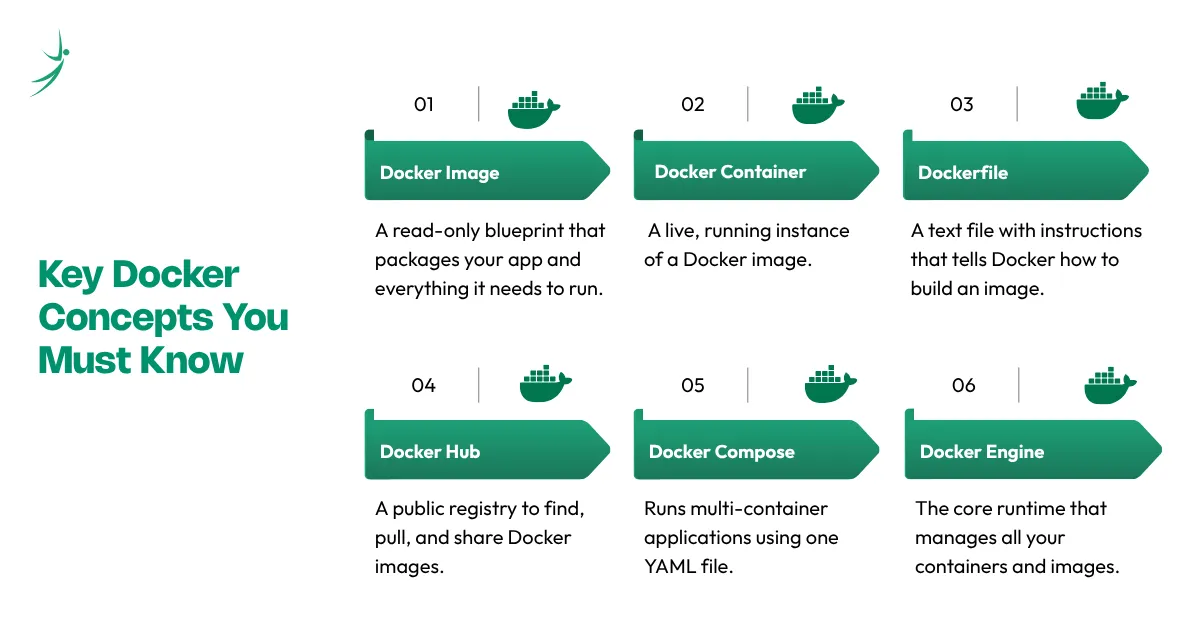
Before you run your first container, you need to understand a handful of terms. These come up constantly in documentation, job interviews, and every DevOps conversation you will ever have.
Docker Image
A Docker image is a read-only blueprint for creating a container. It contains your application code, the runtime it needs, any libraries and dependencies, and configuration instructions.
Think of an image as a recipe. The recipe itself does not cook anything, it just tells you exactly what to do. You can use that same recipe a hundred times and get the same result every time.
Images are built from a Dockerfile (covered below) and stored in a registry like Docker Hub.
Docker Container
A container is a running instance of a Docker image. When you tell Docker to run an image, it creates a container; a live, isolated environment where your application actually executes.
Going back to the analogy: if the image is the recipe, the container is the cooked dish. You can make many dishes from the same recipe, and you can run many containers from the same image.
Dockerfile
A Dockerfile is a plain text file that contains the step-by-step instructions Docker uses to build an image. You write it once, commit it to your repository, and Docker builds a consistent image from it every single time.
A simple Dockerfile for a Node.js app looks like this:
FROM node:18-alpine
WORKDIR /app
COPY package*.json ./
RUN npm install
COPY . .
EXPOSE 3000
CMD ["node", "server.js"]
Each line is an instruction:
- FROM: starts from a base image (here, a lightweight Node.js image)
- WORKDIR: sets the working directory inside the container
- COPY: copies files from your machine into the container
- RUN: executes a command during the image build
- EXPOSE: tells Docker which port the app listens on
- CMD: the command that runs when the container starts
Docker Hub
Docker Hub is the public registry where Docker images live. Think of it as GitHub but for container images instead of code.
You can pull official, pre-built images for almost anything: Node.js, Python, MySQL, Nginx, Redis, Ubuntu; all ready to use in seconds. You can also push your own images to Docker Hub and share them with your team or the public.
docker pull nginx          # download the official Nginx image
docker pull node:18-alpine  # download a specific Node.js version
Docker Hub offers free public repositories. Private repositories are available on paid plans. Most teams also use private registries like AWS ECR, Google Container Registry, or GitLab's built-in registry for production images.
Docker Compose
Docker Compose is a tool that lets you define and run multi-container applications using a single YAML file called docker-compose.yml.
In real applications, you rarely run just one container. You might have a web server, a database, a cache layer, and a background job processor, all running together. Managing each container separately with individual docker run commands gets messy fast. Docker Compose solves that.
A simple docker-compose.yml for a web app and a database looks like this:
services:
  web:
    build: .
    ports:
      - "3000:3000"
    depends_on:
      - db
  db:
    image: postgres:15
    environment:
      POSTGRES_PASSWORD: yourpassword
One command: docker-compose up - starts both containers together in the right order.
Docker Engine
Docker Engine is the core runtime that makes everything work. It is the background service running on your machine that manages images, containers, networks, and volumes. When you type a Docker command in the terminal, Docker Engine is what actually does the work.
How to Install Docker
Docker runs on Linux, macOS, and Windows. The installation process differs slightly depending on your OS.
On Ubuntu (Linux)
sudo apt update
sudo apt install docker.io
sudo systemctl start docker
sudo systemctl enable docker
Add your user to the Docker group so you do not have to type sudo every time:
sudo usermod -aG docker $USER
Log out and back in for the change to take effect.
On macOS and Windows
Download and install Docker Desktop from docker.com/products/docker-desktop. It installs Docker Engine, Docker Compose, and a GUI dashboard in one package. Follow the on-screen steps and Docker Desktop handles everything.
Verify the Installation
Once installed, run these two commands to confirm everything is working:
docker --version
docker run hello-world
The second command downloads a small test image and runs it. If you see a "Hello from Docker!" message, your installation is working correctly.
Your First Docker Container: Step by Step
Now let us actually run something.
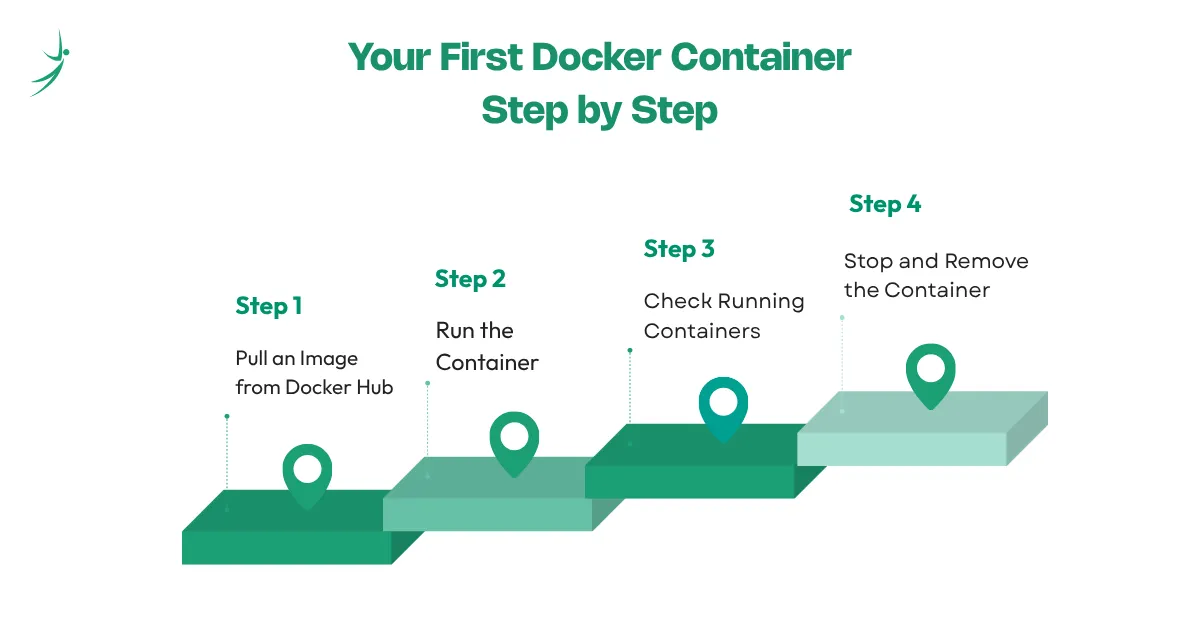
Step 1: Pull an Image from Docker Hub
docker pull nginxThis downloads the official Nginx web server image from Docker Hub to your machine.
Step 2: Run the Container
docker run -d -p 8080:80 --name my-nginx nginxBreaking this down:
- -d — runs the container in the background (detached mode)
- -p 8080:80 — maps port 8080 on your machine to port 80 inside the container
- --name my-nginx — gives the container a readable name
- nginx — the image to run
Open your browser and go to http://localhost:8080. You should see the Nginx welcome page. You just ran a web server inside a container in under 30 seconds.
Step 3: Check Running Containers
docker psThis lists all currently running containers with their IDs, names, status, and port mappings.
Step 4: Stop and Remove the Container
docker stop my-nginx
docker rm my-nginx
The first command stops the container. The second removes it. The image stays on your machine, you can run a new container from it any time.
Essential Docker Commands Every Beginner Should Know
You will use these commands every day. Learn them properly and Docker starts feeling natural fast.
Container Commands
| Command | What it Does |
|---|---|
| docker run <image> | Create and start a new container |
| docker ps | List all running containers |
| docker ps -a | List all containers including stopped ones |
| docker stop <name> | Stop a running container |
| docker rm <name> | Remove a stopped container |
| docker exec -it <name> bash | Open a terminal inside a running container |
Image Commands
| Command | What it Does |
|---|---|
| docker pull <image> | Download an image from Docker Hub |
| docker images | List all images on your machine |
| docker build -t <name> . | Build an image from a Dockerfile |
| docker rmi <image> | Remove an image |
| docker push <image> | Push an image to Docker Hub |
Utility Commands
| Command | What it Does |
|---|---|
| docker logs <name> | View logs from a container |
| docker inspect <name> | Get detailed info about a container |
| docker system prune | Remove all stopped containers and unused images |
| docker-compose up | Start all services in a docker-compose.yml |
| docker-compose down | Stop and remove all compose services |
Writing Your First Dockerfile
Once you understand how to use existing images, the next step is building your own. That is where the Dockerfile comes in.
Here is a beginner-friendly Python Flask app Dockerfile:
FROM python:3.11-slim
WORKDIR /app
COPY requirements.txt .
RUN pip install -r requirements.txt
COPY . .
EXPOSE 5000
CMD ["python", "app.py"]
Build it:
docker build -t my-flask-app .Run it:
docker run -d -p 5000:5000 my-flask-appVisit http://localhost:5000 and your Flask app is running inside a container.
Common Dockerfile Mistakes Beginners Make
- Using a heavy base image: FROM ubuntu:latest pulls hundreds of megabytes. Use python:3.11-slim or node:18-alpine instead. Alpine images are often under 50MB.
- Copying everything before installing dependencies: always copy requirements.txt or package.json first, install, then copy the rest. Docker caches layers, so this makes rebuilds much faster.
- Running as root: add a non-root user for security. Production containers should never run as root.
- Hardcoding secrets: never put passwords or API keys in a Dockerfile. Use environment variables or Docker secrets.
What is Docker Compose?
Once you start building real applications, you will almost always need more than one container. A typical web application needs a web server, a database, maybe a Redis cache, and possibly a background worker. Running each one manually with separate docker run commands is manageable at first but it gets messy quickly.
Docker Compose solves this by letting you define your entire application stack in one file.
Here is a more complete docker-compose.yml example; a web app with a PostgreSQL database:
services:
  web:
    build: .
    ports:
      - "3000:3000"
    environment:
      DATABASE_URL: postgres://postgres:password@db:5432/myapp
    depends_on:
      - db
  db:
    image: postgres:15
    volumes:
      - pgdata:/var/lib/postgresql/data
    environment:
      POSTGRES_PASSWORD: password
      POSTGRES_DB: myapp
volumes:
  pgdata:
docker-compose up -ddocker-compose downThe volumes section keeps your database data intact even if you stop and restart the containers because by default, containers do not retain data when they stop.
Docker in Real-World Use Cases
Docker is not just a learning exercise, it is the backbone of how modern software gets built and shipped. Here is where you will see it used in practice:
- Local Development: instead of asking every developer on your team to install Node 18, Python 3.11, PostgreSQL 15, and Redis separately, you give them a docker-compose.yml file. One command and their entire local environment is running.
- CI/CD Pipelines: when a developer pushes code, a CI/CD pipeline picks it up, builds a Docker image, runs automated tests inside a container, and deploys the image if tests pass. No manual steps. If you want to understand how this fits into a full delivery pipeline, our guide to how CI/CD works from code commit to production breaks it down clearly.
- Microservices Architecture: large applications like Netflix or Amazon are not one monolithic codebase. They run dozens or hundreds of small, independent services. Each service runs in its own container, can be deployed independently, and scales without touching the others.
- Cloud Deployment: AWS, Azure, and Google Cloud all support Docker natively. You build a Docker image locally, push it to a registry like Docker Hub or AWS ECR, and deploy it to a cloud server or container service like AWS ECS or Google Cloud Run.
- Testing: QA teams use Docker to spin up fresh, identical environments for every test run. No leftover state from previous tests. No "the test passed on my machine" problems.
Docker Best Practices for Beginners
These habits separate developers who just use Docker from developers who use it well:
- Use small base images: Alpine Linux-based images (like node:18-alpine or python:3.11-slim) are significantly smaller than full OS images. Smaller images build faster, pull faster, and have fewer security vulnerabilities.
- Do not store data in containers: containers are temporary. If a container restarts, anything stored inside it is gone. Use Docker volumes to persist data outside the container.
- Keep containers stateless: your app logic goes in the container; your data goes in a database or volume. This makes containers easy to replace, scale, and update.
- Never hardcode secrets: passwords, API keys, and tokens should come from environment variables or a secrets manager, not from your Dockerfile or code.
- Use specific image tags: FROM node:latest means Docker will pull whatever is newest, which changes over time and can break builds. Use FROM node:18-alpine so your builds are consistent and predictable.
- Version-control your Dockerfiles: treat your Dockerfile like code. Commit it to Git, review changes, and track its history.
Docker and Kubernetes: What Comes Next?
Once you get comfortable with Docker, the natural next step is Kubernetes.
Docker runs containers. Kubernetes manages them at scale.
In production environments, especially in large companies, you are not running two or three containers. You are running hundreds or thousands, spread across multiple servers, handling real traffic, and needing to stay online 24/7. Kubernetes handles all of that: scheduling containers across servers, restarting failed ones automatically, scaling up when traffic spikes, and rolling out updates without downtime.
Docker and Kubernetes are not alternatives. They work together. You build and package your application with Docker; Kubernetes takes those containers and runs them reliably in production.
If you want to understand how DevOps tools like Docker, Kubernetes, and Jenkins fit together in a real workflow, that guide covers the full picture.
Career Perspective: Docker in Nepal's IT Market
Docker is not optional for anyone going into DevOps, cloud, or backend engineering. It is on the requirements list of almost every DevOps job posting in Nepal and globally.
Here is why it matters for your career specifically:
- Every company running a modern DevOps workflow uses containers. Docker is the entry point to that world.
- Docker is the foundation for Kubernetes and Kubernetes engineers are among the highest-paid in Nepal's IT market, with senior salaries reaching NPR 1,50,000 to 2,50,000 per month.
- Docker knowledge opens the door to cloud platforms. AWS, Azure, and GCP all have container services built around Docker images.
- Companies in Nepal, from fintech firms to software houses to startups have steadily moved toward containerized deployments over the last three years.
If you are serious about building a career in DevOps or cloud engineering, Docker is one of the first practical tools you should get hands-on with. Not sure where Docker fits in the bigger picture? Our DevOps roadmap for beginners walks you through the exact sequence; what to learn first, what comes after Docker, and how it all builds toward a job-ready skill set.
Final Thoughts
Docker changed how software gets built and shipped. The "it works on my machine" problem, which used to waste hours of debugging time, simply stops existing when you containerize your applications properly.
Start simple. Pull an image from Docker Hub, run it, break it, fix it. Write your first Dockerfile. Build a small app and containerize it yourself. That hands-on experience teaches you more than any amount of reading.
Once Docker clicks, Kubernetes, cloud deployment, and CI/CD pipelines all start to make a lot more sense because Docker is the thread that connects all of them.
Ready to go beyond the basics and build job-ready DevOps skills? Explore Skill Shikshya's DevOps and Cloud program, a hands-on diploma built around what Nepal's tech industry is actually hiring for right now.
Frequently Asked Questions
What is Docker in simple terms?
Is Docker hard to learn for beginners?
What is the difference between a Docker image and a container?
Do I need to know Linux to use Docker?
What is Docker Compose used for?
Is Docker free to use?
Docker vs Kubernetes, which should I learn first?
How long does it take to learn Docker?
About Author: