Git and GitHub for Beginners: The Complete Step-by-Step Guide to Version Control (2026)
Imagine spending three weeks building a web application, only to write a single buggy line of code that breaks the entire project. You try using the undo shortcut, but your editor crashed, and you cannot remember what you changed. This nightmare is exactly why developers use version control.
If you are pursuing software engineering or mapping out your entry through structured career guides, mastering these tools is non-negotiable. If you want to transition from building simple static pages to launching full-stack cloud projects, enrolling in a best MERN stack course in Nepal will show you how vital these workflows are in production.
What You'll Learn in This Guide
This comprehensive guide will take you from absolute zero to confidently managing source code. You will learn the core differences between local version tracking and cloud hosting, install the necessary environment tools, master the essential commands used by engineering teams globally, and understand how to protect your code from accidental loss.
Who Should Read This Guide?
Whether you are a self-taught enthusiast discovering about MERN stack for the first time, a computer science student prepping for internships, or a front-end developer looking for a comprehensive roadmap on how to get into MERN stack, this guide is crafted specifically for you. No prior command-line experience is required.
How Git and GitHub Help in Real-World Software Development
In real software environments, dozens of engineers write code simultaneously on the same codebase. Without version control, they would constantly overwrite each other's work. Git isolates everyone's changes into experimental streams, while GitHub acts as the centralized source of truth where code is reviewed, tested, and deployed to production servers automatically.
What is Git?
The word git is a slang term meaning an unpleasant or stubborn person. Linus Torvalds, the creator of Linux and Git, jokingly stated that he names all his projects after himself: first Linux, and then Git. In software engineering, the technical git meaning refers to a free, open-source distributed version control tool that tracks modifications made to files over time.
Why Was Git Created?
In 2005, the development team behind the Linux Kernel lost their free license for a proprietary version control system they were using. Frustrated by the slow, rigid alternatives available on the market, Linus Torvalds spent a few weeks designing a brand-new system that could handle massive codebases with extreme speed, high data integrity, and support for non-linear workflows.
How Git Works Behind the Scenes
Instead of saving copies of entire files every time you modify them, Git operates on a system of directed acyclic graphs and SHA-1 cryptographic hashes. It views data as a stream of snapshots. If a file has not changed in a new revision, Git does not duplicate the file; it simply stores a reference link to the identical file it already has recorded.
Benefits of Using Git
- Complete Offline Functionality: You can view your project history, commit code changes, and switch between development branches without needing an active internet connection.
- Blazing Fast Speeds: Because your entire project version history sits directly on your local computer hard drive, common version control operations happen near-instantly.
- Frictionless Branching Workflows: Creating isolated, sandboxed environments to safely experiment with new code features or bug fixes takes only milliseconds.
- Seamless Team Collaboration: Multiple software engineers can work on the exact same codebase simultaneously on separate branches without risk of overwriting or destroying each other's progress.
- Reliable Distributed Backups: Since every collaborator possesses a complete mirror of the project database, your source code is inherently guarded against catastrophic hard drive crashes or single-point server failures.
Features of Git
The features if git are:
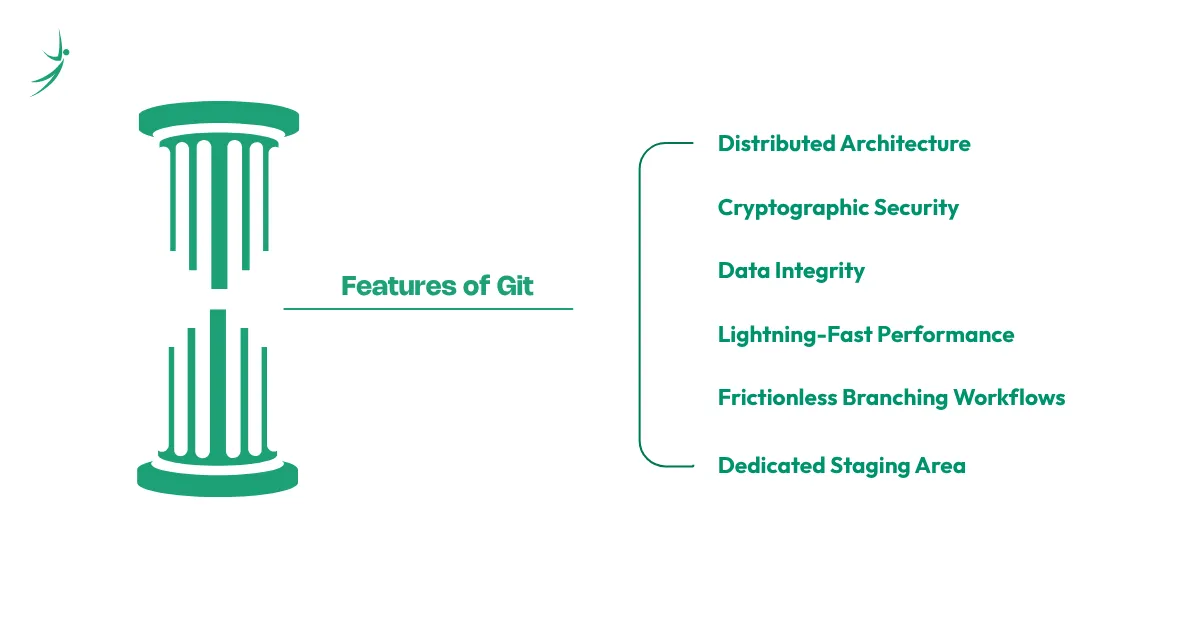
- Distributed Architecture: Every collaborator keeps a complete copy of the entire project history and database locally on their own computer.
- Cryptographic Security: Every single commit is securely tracked using SHA-1 cryptographic hashing algorithms, making it impossible to alter historic logs without detection.
- Data Integrity: Git strongly guards against accidental file corruption or data loss during network transmissions and hard drive storage failures.
- Lightning-Fast Performance: Because almost all version control operations run locally on your hard drive rather than a remote cloud server, tracking changes happens near-instantly.
- Frictionless Branching Workflows: Git allows developers to create isolated, parallel lines of code to safely build or test new features without risking the stability of the main production codebase.
- Dedicated Staging Area: Git provides a unique intermediate layer known as the index or staging area. This allows developers to meticulously organize, review, and precisely select which specific file modifications are packaged into the next commit snapshot rather than blindly saving every single change at once.
When Should You Use Git?
You should initialize Git the very second you create a new directory for a project. It is useful whether you are writing a simple single-page portfolio, a massive enterprise software suite, or even drafting a book in markdown files.
Git Documentation and Official Resources
The official website provides extensive, deeply detailed git documentation completely free of charge. You can read the comprehensive Pro Git book online or check manual reference pages to understand advanced configuration mechanisms.
Understanding Version Control Systems
What is Version Control?
Version control is a system that records changes to a file or set of files over time so that you can recall specific versions later. It allows you to roll back mistaken edits, compare code variants, and trace the history of bugs.
Types of Version Control Systems
Historically, version control evolved through three primary configurations:
- Local Version Control: Developers copied files into different directories manually, an error-prone system easily broken by typing the wrong folder name.
- Centralized Version Control (CVCS): Systems like SVN used a single central server containing all versioned files. If the server went down, nobody could collaborate or save history.
- Distributed Version Control (DVCS): Systems like Git where clients fully mirror the entire repository data locally.
Centralized vs Distributed Version Control
In a centralized setup, you are completely dependent on network connectivity to run basic history checks. In a distributed setup, your local machine holds the entire system database. If the main server crashes, any developer's local repository clone can be uploaded to restore the server completely.
Why Git Became the Industry Standard
Git outpaced older competitors due to its speed, decentralized nature, and incredible management of branching. It turned branching from an expensive, terrifying operation into a core daily habit, enabling modern continuous integration and rapid deployment models.
What is GitHub?
GitHub Meaning
The technical github meaning represents a cloud-based hosting platform built specifically around the Git version control system. While Git is the engine that tracks changes, GitHub is the beautiful garage where those projects are stored, shared, and managed on the internet.
What is GitHub Used For?
GitHub provides a graphical user interface, project management tools, issue trackers, code review workflows, and social features. It serves as a portfolio platform for developers, a collaboration workspace for open-source teams, and a secure code repository for businesses.
GitHub Login
To access your cloud repositories, you visit the official website and complete the github meaning secure authentication via the github login portal. This grants you access to your personalized developer dashboard.
Creating a GitHub Account
Setting up a new github account takes less than two minutes. Navigate to the registration page, enter a valid email address, select a strong password, and choose a unique username that looks professional to future recruiters.
GitHub Logo Explained
The famous github logo features a clean silhouette of a fictional creature called the "Octocat" (part octopus, part cat). It symbolizes the combination of creative flexibility and multi-threaded tracking paths coming together seamlessly.
GitHub Status Page
If you ever experience issues pushing code or loading pages, checking the github status portal gives you real-time operational insights regarding cloud server uptime, API availability, and active maintenance windows.
GitHub Documentation (Docs)
The official github documentation or github docs resource offers interactive tutorials, quick-start setup guides, and comprehensive API documentation to help you learn how to configure authentication keys and manage enterprise teams.
Git vs GitHub: What's the Difference?
The below table shows the differences between the git and github:
| Feature | Git | GitHub |
| What is it? | A local command-line software utility. | A cloud-based web hosting service platform. |
| Core Purpose | Tracks files and manages project version histories. | Hosts Git repositories online for remote collaboration. |
| Installation | Installed locally directly on your desktop machine. | Runs completely in cloud web browsers; no local engine setup. |
| User Interface | Relies primarily on CLI commands or basic GUIs. | Offers a clean, comprehensive graphical dashboard. |
| Key Capability | Handles branches, commits, merges, and code states. | Manages bug tracking, team permissions, and project boards. |
| Creator | Created by Linus Torvalds in 2005. | Founded in 2008; acquired by Microsoft. |
Can You Use Git Without GitHub?
Yes, absolutely. Git works completely independent of the cloud. You can run Git inside an isolated folder on your local computer, tracking history, creating branches, and committing changes without ever connecting to the internet or setting up an external account.
When Should You Use Both Together?
You use them together when you want to backup your local work to the cloud, showcase your engineering portfolio to hiring teams, or collaborate with other developers on a shared project.
Installing Git on Your Computer
Git Download
To begin working, navigate to the official website and initiate a fresh git download matching your current system architecture.
Git Install
Running a standard git install configuration sets up the core command-line parameters on your environment path so you can call commands safely from any project directory.
Git Windows Install
For users running Microsoft systems, launching a git windows install involves running an executable setup file. Ensure you check the box that allows Git to be utilized inside your default command prompt.
Git Windows Download
When executing your git windows download, select either the 32-bit or 64-bit standalone installer depending on your system hardware profile to achieve optimal compilation performance.
Git Install on macOS
To process a clean git install mac command, simply open your terminal window and type git --version. If it is missing, Apple will automatically trigger the Xcode Command Line Tools installation dialog for you. Alternatively, you can use the Homebrew package manager by running:
Bash
brew install gitInstalling Git on Linux
If you are setting up your development workspace on a github linux environment, use your distribution's native package manager. For Debian or Ubuntu distributions, execute:
Bash
sudo apt update
sudo apt install git
Verifying Git Installation
Once completed, open your terminal window or terminal shell configuration and type the following string to confirm successful integration:
Bash
git --versionUnderstanding Git Bash
What is Git Bash?
Windows environments natively handle commands differently than Unix systems. Git Bash is a package that provides a Bash emulation layer for Windows environments, giving you access to standard Unix command-line utilities like ls, cd, and pwd.
Git Bash vs Command Prompt
While the classic Windows Command Prompt uses legacy DOS syntax rules, Git Bash lets you run industry-standard shell scripts and commands identically to how engineers operate on macOS and Linux platforms.
Git Bash Download
The Git Bash engine comes bundled automatically with your standard git bash download configuration inside the Windows setup bundle, so no secondary installation step is necessary.
Using Git Bash for the First Time
When you boot up the shell interface, you will see a text-driven console window. This is where you will type all your version control instructions instead of using standard file explorer click systems.
GitHub Bash Explained
Many beginners refer to this shell interface as github bash, but it is important to remember that it is purely a local command environment built around Git, not a direct creation of the GitHub cloud network.
First-Time Git Setup
Git Config
Before creating your first commit, you must introduce yourself to the local engine using the git config command. This guarantees that all history logs permanently document correct author credentials.
Configure Username and Email
Run the following two configurations in your terminal, replacing the placeholders with your actual identifying details:
Bash
git config --global user.name "Your Name"
git config --global user.email "your.email@example.com"
Verify Git Configuration
To confirm that your global parameters saved correctly without typos, run:
Bash
git config --listCreating Your First Git Account Connection
To securely link your computer to your remote git account, it is best practice to configure an SSH key mapping. This establishes a trusted, passwordless connection between your computer and the cloud.
Understanding Git Repositories
What is a Git Repo?
A git repo (short for repository) is simply a specialized project folder that has been tracked by Git. It houses all your raw application files alongside a hidden subdirectory named .git, which holds the complete version database.
Local Repository vs Remote Repository
Local Repository: Resides directly on your physical computer hard drive.
Remote Repository: Hosted securely on an external cloud server like GitHub, accessible by team members across the internet.
Creating Your First Repository
To create a new repository, navigate into your development project directory via your terminal shell and tell the engine to start watching the folder.
Repository Structure
Inside a repository, files exist in one of two major states: Untracked (new files Git has not been told to follow yet) or Tracked (files already recorded in Git’s history system).
The Git Workflow Every Beginner Should Learn
Understanding the Git state engine is the secret to avoiding errors. Files move through three distinct local areas before hitting the cloud.
- Working Directory: This is your current active sandbox folder. It contains the actual physical files you are editing using your favorite code editor.
- Staging Area: Think of the staging area as a loading dock. It is a file that stores structural data about what changes will be packaged into your next formal system snapshot.
- Local Repository: Once you commit your changes, they are safely stored inside the permanent local database file structure within the hidden .git folder.
- Remote Repository: The final landing pad where your local commit history logs are uploaded online to be shared safely across the web.
Essential Git Commands Every Beginner Must Know
Git Init
This command sets up a brand-new, empty local repository. It drops the hidden tracking folder right into your current directory path.
Bash
git initGit Add
The git add instruction tells the engine to copy your fresh modifications from the workspace directly into the preparation staging area.
Adding Individual Files
To stage a single specific asset file, type its exact name:
Bash
git add index.htmlAdding Multiple Files
To stage every single modified tracking change across your folder at once, use the universal dot parameter:
Bash
git add .Git Commit
The git commit command acts like a save state button in a video game. It permanently bakes your staged modifications into your local repository chain.
What is a Commit?
A commit is a permanent cryptographic snapshot of your project at a specific second in time. Each commit points to its immediate parent commit, forming a continuous history chain.
Git Commit Command
To save your work, call the execution string while passing an informative log label using the message flag:
Bash
git commit -m "Initial commit: Set up landing page structure"Writing Good Commit Messages
Always write commit messages in the imperative, present-tense mood (e.g., "Fix user registration timeout bug" instead of "Fixed user registration bug"). Keep them descriptive but short.
Git Push
Once you have saved your snapshots locally, you want to upload them to your online project dashboard using a git push sequence.
Git Push Command
The basic git push command syncs your local branch history logs directly with the configured upstream server target.
Git Push Origin Main
To upload your core development files to your primary remote branch for the first time, run:
Bash
git push -u origin mainGit Pull
If team members push fresh edits to the master codebase while you are offline, you must sync your local project files using a git pull sequence.
Git Pull Command
The standard git pull command fetches raw modifications from the cloud and instantly merges them into your active workspace branch.
Bash
git pull origin mainGit Clone
When you discover an open-source project or need to copy your own cloud work onto a brand-new computer, you use a git clone sequence.
Git Clone Command
Running the explicit git clone command duplicates the entire remote project codebase, complete with all historic commit chains, down onto your local system.
Bash
git clone https://github.com/username/project-name.gitGit Checkout
The legacy git checkout mechanism allows you to travel back through time to inspect an older commit snapshot, or seamlessly switch between separate task branches.
Bash
git checkout feature-loginGit Branch
A branch is an isolated pointer to a specific commit timeline. It allows you to build features without disturbing the stable production code.
Create Branch
To spin up a new parallel workspace path, call the command followed by your descriptive name tag:
Bash
git branch feature-dark-modegit branch feature-dark-mode
Switch Branch
To jump over onto your newly generated path to begin writing code safely, use:
Bash
git switch feature-dark-modegit switch feature-dark-mode
Git Rename Branch
If you make a typo while labeling your active workspace tracking branch, modify its string name instantly by executing:
Bash
git branch -m new-branch-namegit branch -m new-branch-name
Git Delete Branch
To clean up your workspace after a feature has been safely merged into production, you can remove the branch label by running:
Bash
git branch -d branch-namegit branch -d branch-name
Git Delete Local Branch
If a branch contains unmerged data that you want to completely discard from memory, force a permanent local deletion using the uppercase flag:
Bash
git branch -D temporary-experimental-branchGit Reset Hard
The git reset hard flag is a powerful but dangerous option. It completely wipes out all uncommitted modifications across your working directory and resets your project back to its last saved commit state.
When Should You Use Reset?
Use this option only when an architectural experiment goes completely wrong, your code is broken beyond repair, and you want to throw away everything you wrote since your last commit.
Bash
git reset --hard HEADGit Merge Abort
If a complex branch merge encounters unexpected structural code conflicts that you do not want to deal with right now, you can completely cancel the operation by running:
Bash
git merge --abortGit Set Remote URL
If you rename your repository online or switch your cloud platform hosting target, update your local project mapping link by executing:
Bash
git remote set-url origin https://github.com/username/new-repository-link.gitConnecting Git with GitHub
Create Your First GitHub Repository
- Log in to your cloud dashboard.
- Click the green New button located in your repository sidebar area.
- Enter a short name for your repository (e.g., my-first-app).
- Set the visibility status to Public and leave the README initialization boxes unchecked.
- Click Create repository.
Clone the Repository
Copy the HTTPS or SSH link provided on your empty repository screen. Open your local machine terminal and run your clone instruction to download the repository configuration onto your desktop:
Bash
git clone https://github.com/your-username/my-first-app.gitPush Your First Project
Navigate into the newly created folder, add a project file, stage it, commit the snapshot locally, and send it to the cloud:
Bash
cd my-first-app
echo "# Hello World" >> README.md
git add README.md
git commit -m "docs: add repository readme header"
git push origin main
Pull Latest Changes
If you click the edit pen icon directly on the GitHub website to tweak your project description, you must bring those updates back down onto your desktop machine before writing more code:
Bash
git pull origin mainUnderstanding Remote Repositories
Remote repositories are simply version control targets hosted somewhere on a remote server. Git maps these long URLs to simple aliases, with the primary cloud target universally named origin by default.
GitHub Desktop
What is GitHub Desktop?
For visual learners who feel intimidated by typing instructions directly into a black text console terminal, GitHub Desktop is an official application that provides a clean graphical user interface (GUI) to handle version control workflows using simple mouse clicks.
GitHub Desktop Download
To add this visual application to your workspace environment, complete a standard github desktop download via the official platform release site.
Installing GitHub Desktop
Run the system package setup configuration. Once launched, sign in using your standard user profile credentials to automatically sync your cloud projects down onto your local workspace.
GitHub Desktop vs Git CLI
- Git CLI (Command Line Interface): Offers unmatched processing speed, works universally across all server systems, and consumes fewer system resources.
- GitHub Desktop GUI: Visualizes branching history beautifully, lets you stage lines of code using intuitive checkboxes, and eliminates the need to memorize text commands.
Who Should Use GitHub Desktop?
It is ideal for product designers tracking UI assets, project managers reviewing text copy, or beginner developers who want a visual safety net while they get comfortable with Git concepts.
GitHub CLI
What is GitHub CLI?
The GitHub CLI is a command-line tool that brings GitHub's web features directly into your local terminal window. It allows you to manage cloud-based issues, pull requests, and repository settings without ever opening a web browser.
Installing GitHub CLI
Depending on your package management environment, you can install the platform core tool utility by running a quick terminal setup command:
Bash
brew install ghBasic GitHub CLI Commands
To check your active cloud repository assignments or view pull request feedback directly inside your open terminal window, execute:
Bash
gh repo view
gh pr list
GitHub Codespaces
What is GitHub Codespaces?
The GitHub Codespaces engine provides a fully configured cloud-hosted development environment that launches instantly inside any internet browser. It runs a secure Linux container managed on cloud infrastructure behind the scenes.
Benefits for Beginners
It completely eliminates initial setup frustrations. You do not have to worry about configuring environment path variables, downloading localized development tools, or troubleshooting operating system mismatches.
Running Code Without Local Setup
With a single click on a repository, you get access to a full Visual Studio Code workspace environment equipped with an integrated terminal, debugger tool parameters, and pre-installed runtimes.
GitHub README Generator
Why README Files Matter
A README.md file is the front door to your software project. It is written in markdown syntax and renders automatically at the bottom of your repository page, explaining to visitors what your application does, how to install it, and how to run it.
GitHub README Generator Tools
If you do not know how to design a professional looking file layout from scratch, using an interactive github readme generator online allows you to select custom layout modules, tech badges, and profile metrics to generate clean markdown text instantly.
Writing an Effective README
A great README file layout includes:
- A clear, catchy project description header.
- Step-by-step terminal installation guides.
- Code snippets illustrating basic application usage.
- Live preview deployment links.
GitHub API
What is GitHub API?
The GitHub API is an application programming interface that allows external software programs to interact with GitHub's data servers programmatically.
Beginner Use Cases
As a beginner, you can use the API to build a portfolio section on your personal website that dynamically pulls data about your public repositories and stars.
Popular API Examples
By sending a simple web request to the public endpoint, any application can fetch real-time profile metrics without needing a password:
https://api.github.com/users/your-username/repos
GitHub Education and Student Benefits
GitHub Education
The GitHub Education portal is an initiative designed to provide students, teachers, and academic institutions with free access to professional developer tools and learning tracks.
GitHub Student Pack
The highly sought-after github student pack opens up thousands of dollars worth of elite software credits, cloud server vouchers, and domain name registrations completely free of charge.
GitHub Student Developer Pack
By securing your verified github developer pack confirmation status, you get free access to premier tools like Canva Pro, frontend master tracks, premium tracking credits, and advanced hosting environments.
Eligibility
To qualify for the github student benefits, you must be at least 13 years old, possess a verifiable academic school email address (such as an .edu domain link), or upload official proof of current enrollment.
How to Apply
- Head over to the official education portal.
- Click Get benefits for students.
- Upload your school credentials or student ID card.
- Submit the request for background verification.
Free Tools Included
- Free GitHub Copilot AI assistance access.
- Cloud server usage credits on DigitalOcean.
- Free premium domain name access codes.
GitHub Tutorial: Build Your First Project
Let's put everything you've learned into practice with a complete end-to-end walkthrough.
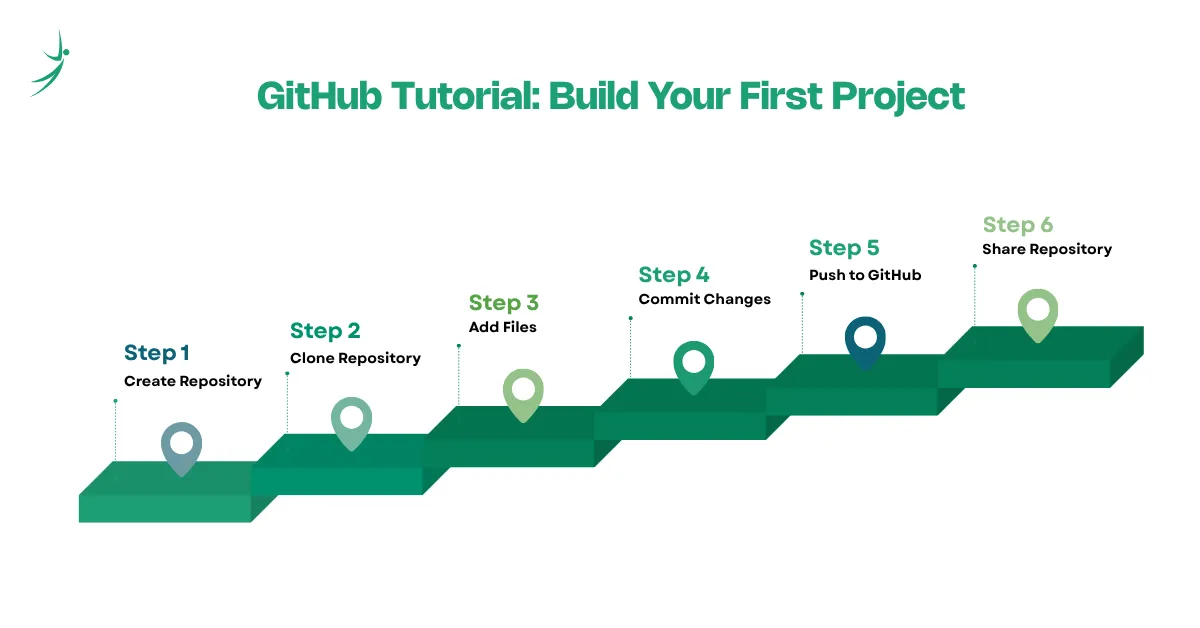
Create Repository
Log into your web dashboard account and create a fresh public cloud repository called git-tutorial-project.
Clone Repository
Open your terminal application or local command-line interface, run your clone sequence, and jump inside the new folder:
Bash
git clone https://github.com/your-username/git-tutorial-project.git
cd git-tutorial-project
Add Files
Create a new file named app.js using your terminal editor or favorite workspace utility:
Bash
echo "console.log('Learning Git is awesome!');" > app.jsCommit Changes
Check the tracking status of your directory files, move the new code to staging, and save your local snapshot:
Bash
git status
git add app.js
git commit -m "feat: implement initial core logging script"
Push to GitHub
Upload your local saved snapshot chain onto the remote cloud storage branch path:
Bash
git push origin mainShare Repository
Copy the clean website URL link from your browser header window and share it with your developer friends so they can review your code!
Git Ignore Files
What is .gitignore?
A .gitignore file is a plain text file placed in your project's root folder. It tells Git explicitly which specific files or entire directories it should completely ignore and never track in its history logs.
Why Every Project Needs It
Certain workspace assets should never be uploaded online. This includes massive system dependencies like node_modules, local environment configuration files containing private database passwords (.env), and hidden operating system cache data files (.DS_Store).
Gitignore Generator
Writing these configurations manually can be tedious. Using an automated online gitignore generator allows you to input your exact operating system and software framework parameters to build a perfectly optimized file structure instantly.
Best Practices
- Create and configure your ignore file before you make your very first commit.
- Never track your private application passwords or security keys in version logs.
- Use universal pattern rules (e.g., *.log to block all tracking log files at once).
Git Cheat Sheet for Beginners
25 Most Used Git Commands
Bash
# Setup and Initialization

git init                   # Initialize a new local repository

git clone             # Download a remote repository from the cloud

# Staging and Committing

git status                 # View current modifications in the workspace

git add              # Move a single asset file onto the staging deck

git add .                  # Stage all modified project files at once

git commit -m "message"    # Save staged changes into a local snapshot

git commit --amend         # Modify your last commit message layout

# History and Comparison

git log                    # Display the complete chronological commit log

git log --oneline          # Show history logs packed into short single lines

git diff                   # View raw line-by-line file modifications

# Branching and Merging

git branch                 # List all local development branches

git branch           # Create a new experimental feature branch

git switch           # Switch over to your specified target branch

git merge          # Combine features from another branch target

git branch -d        # Delete a completed feature branch cleanly

# Remote Synchronization

git remote add origin # Link a local folder to a remote cloud repository

git remote -v              # View all active remote repository web links

git push origin main       # Upload local saved snapshots to the cloud

git pull origin main       # Fetch and merge cloud updates into your desktop

git fetch                  # Download remote changes without merging them

# Undoing and Corrections

git restore          # Discard uncommitted edits inside a file

git reset HEAD~1           # Undo your last commit but keep your file changes

git reset --hard HEAD      # Erase all changes since your last saved commit

git merge --abort          # Cancel a conflict-heavy branch merge operation
Daily Git Workflow
A standard day-to-day routine for an engineer follows a clear cyclical rhythm:
Pull Latest Changes -> Create Feature Branch -> Write Code
-> Stage & Commit -> Push to Cloud -> Open Pull Request
Downloadable Git Cheat Sheet
Keep a comprehensive git cheat sheet saved on your desktop or printed out on your desk so you can quickly reference command parameters without breaking your coding flow.
GitHub vs GitLab
What is GitLab?
GitLab is a major competitor to GitHub. It is a complete DevOps platform that provides source code management, security auditing tools, and advanced built-in continuous integration pipelines within a single integrated platform solution.
GitHub vs GitLab Comparison
- GitHub: Focuses heavily on developer experience, hosts the largest open-source community on earth, and offers incredible third-party tool integrations.
- GitLab: Focuses on enterprise operations, excels at complex automated infrastructure deployment pipelines, and allows companies to host the entire software platform completely on their own private servers.
Which One Should Beginners Choose?
Beginners should start with GitHub. The massive community presence means you can find answers to any bug question instantly, and almost all tech recruiters look for a GitHub link on candidate resumes.
Common Git and GitHub Mistakes Beginners Make
- Forgetting to Commit: Many beginners write code for twelve hours straight without running a commit. If your machine crashes, you risk losing your progress. Commit early and commit often whenever you finish a micro-feature.
- Pushing to the Wrong Branch: Accidentally pushing unfinished, experimental code directly into your stable master deployment branch can instantly crash your live app. Always keep your main branch locked down.
- Merge Conflicts: A merge conflict happens when two developers modify the exact same line of code inside the same file on different branches. Git gets confused and asks you to manually choose which developer's work to keep.
- Resetting the Wrong Commit: Running destructive undo operations blindly can wipe away good development work. Always double check your target snapshot hash codes before executing a reset sequence.
- Deleting Branches Accidentally: Removing a branch before its custom code has been successfully merged into your stable project files will discard your feature progress.
Git and GitHub Best Practices
Branch Naming
Use clear, prefix-driven naming conventions for all your experimental branch labels:
- feat/user-login
- bugfix/navbar-logo-alignment
- docs/api-readme-update
Commit Message Convention
Adopt a standardized, readable system layout like Conventional Commits. This helps teams scan through system update logs at a glance:
- feat: add token authentication layer to route handler
- fix: resolve null pointer crash inside user card component
- docs: update local development installation steps
Repository Organization
Keep your repository files pristine. Never commit temporary system log files, compile outputs, or scratchpad text notes. Utilize your ignore configuration files to keep the cloud workspace clean.
README Best Practices
Treat your main repository description file like a product brochure. Use clean Markdown headings, embed screenshots of your application interfaces, and list clear credits for external resources used.
Security Tips
- Never commit hardcoded secret API access tokens or payment processing keys.
- Configure two-factor authentication (2FA) on your web profile dashboard.
- Regularly clean up outdated local branch parameters from your machine.
Real-World Git Workflow Used by Professional Developers
- Solo Developer Workflow: When working completely alone, you create small feature branches, commit your daily updates locally, push them up to your remote backup repository, and merge them into your main branch once your features are fully tested.
- Team Collaboration Workflow: In professional environments, engineers utilize a structured Pull Request model. You push your feature branch to GitHub, open an interactive Pull Request interface, discuss your code with senior team members, and get their approval before your code is safely merged into production.
- Open Source Contribution Workflow: To contribute code to a project you do not own, you fork a copy of their cloud repository to your personal profile, implement your bug fixes on your copy, and submit an upstream pull request to the original author for consideration.
Practice Projects to Learn Git and GitHub
The absolute best way to commit these concepts to long term memory is by building actual applications.
- Personal Portfolio: Create a beautiful static web landing page showcasing your software development background. Initialize it with Git, push it to GitHub, and use GitHub Pages to host it online for free.
- Notes App: Build a classic note-taking interface. Practice creating a specific branch for adding notes and a completely separate branch for deleting notes to learn how branching operates.
- Calculator Project: Build a JavaScript arithmetic tool. Intentionally modify the same core function file across two different branches to trigger a manual merge conflict, then practice resolving it.
- MERN Stack Project: Build a complete database-driven full-stack application using MongoDB, Express, React, and Node.js. Use a .gitignore configuration to shield your server-side database connection strings from public view.
- Open Source Contribution: Navigate to an open-source project repository, find a simple documentation typo inside a README file, fork the project, implement the quick textual fix, and submit your very first public pull request.
Official Learning Resources
- Git Documentation: Read the complete official manuals and interactive Pro Git book directly at git-scm.com/doc.
- GitHub Docs: Explore comprehensive platform usage workflows and API configurations at docs.github.com.
- GitHub Status: Monitor live cloud performance logs and platform uptime schedules at githubstatus.com.
- GitHub Community: Join forum discussions and collaborate with international engineering peers at github.community.
- GitHub Learning Lab: Practice realistic repository skills through interactive, automated training bots.
Conclusion
Key Takeaways
- Git manages your local project version history; GitHub backs up those snapshots securely to the cloud.
- Mastering the core workflow cycle (Add $\rightarrow$ Commit $\rightarrow$ Push) protects your applications from code corruption and catastrophic data losses.
- Branches provide isolated workspaces that allow you to experiment with features freely without breaking stable code.
Next Steps After Learning Git and GitHub
Now that you understand how to initialize repositories and track modifications, start pushing all your code assignments to the cloud. Build a habit of committing your code every single day until running these terminal commands feels completely natural.
Continue Your Development Journey with Skill Shikshya
If you want to accelerate your growth from a beginner programmer into a job-ready software engineer, learning these tools under direct industry mentorship makes a massive difference.
HTML -> CSS -> JavaScript -> React -> Node.js -> Git & GitHub -> MERN Stack
Enrolling in the specialized training tracks at Skill Shikshya(best IT training institute in Nepal) connects you directly with senior engineering leaders. You will learn production-level architectures, receive structural code reviews on your portfolio repositories, and get full career placement support to turn your engineering passion into a high-paying software career.
Frequently Asked Questions
What is Git?
What is GitHub?
What is the difference between Git and GitHub?
What is Git Bash?
What is a Git repository?
What is the git clone command?
What is the git push command?
What is the git pull command?
What is GitHub Codespaces?
What is the GitHub Student Developer Pack?
What is GitLab, and how is it different from GitHub?
About Author:

Mr. Asim Chaulagain, Full Stack MERN mentor at SkillShikshya and developer at Vrit Technologies, empowers learners to build real-world web applications. Through hands-on projects, he turns coding skills into practical, career-ready expertise.